Images aren't uploading from iPhone
Sometimes, if the device has been configured to, the iPhone will try to upload images in it's own, non-widely supported, HEIC format instead of JPG.
Use the steps below to ensure your images are JPG before uploading. Depending on how you uploaded them, you can use the following instructions to upload them again in the automatic format which uploads compatible JPGs instead.
iPhone (iOS)
When selecting photos to upload:
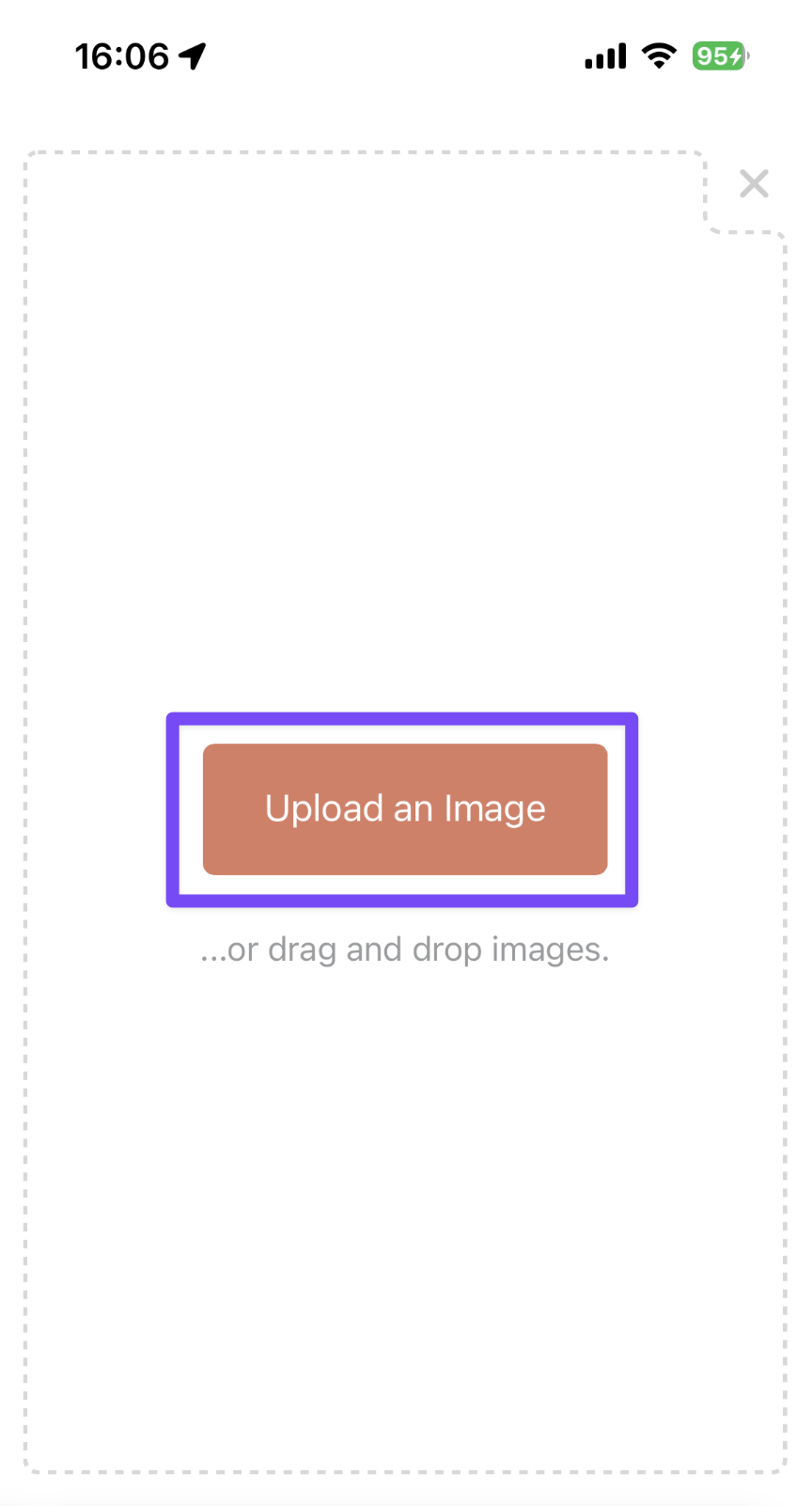
- Tap Upload in your website editor.
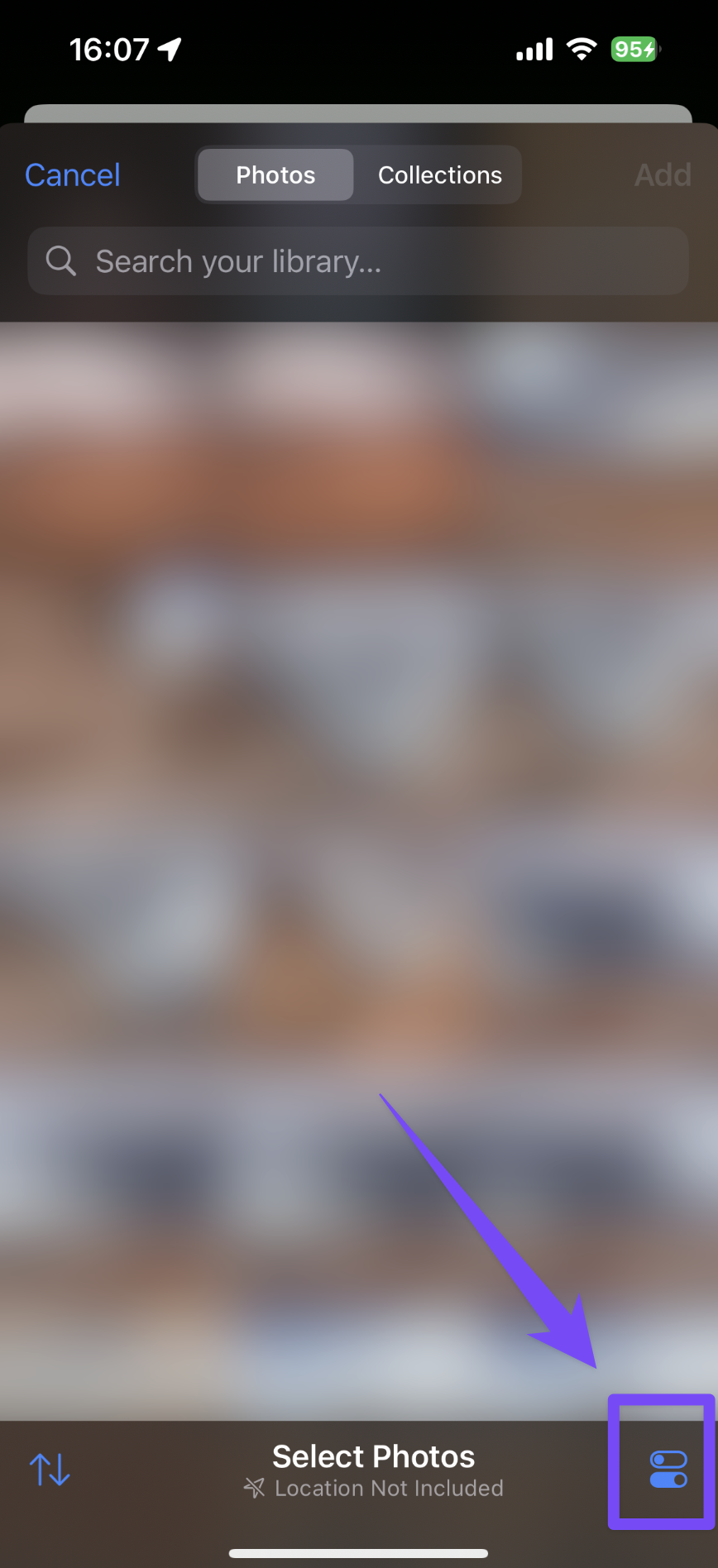
- When the photo picker opens, look for the settings/options icon (top of the screen).
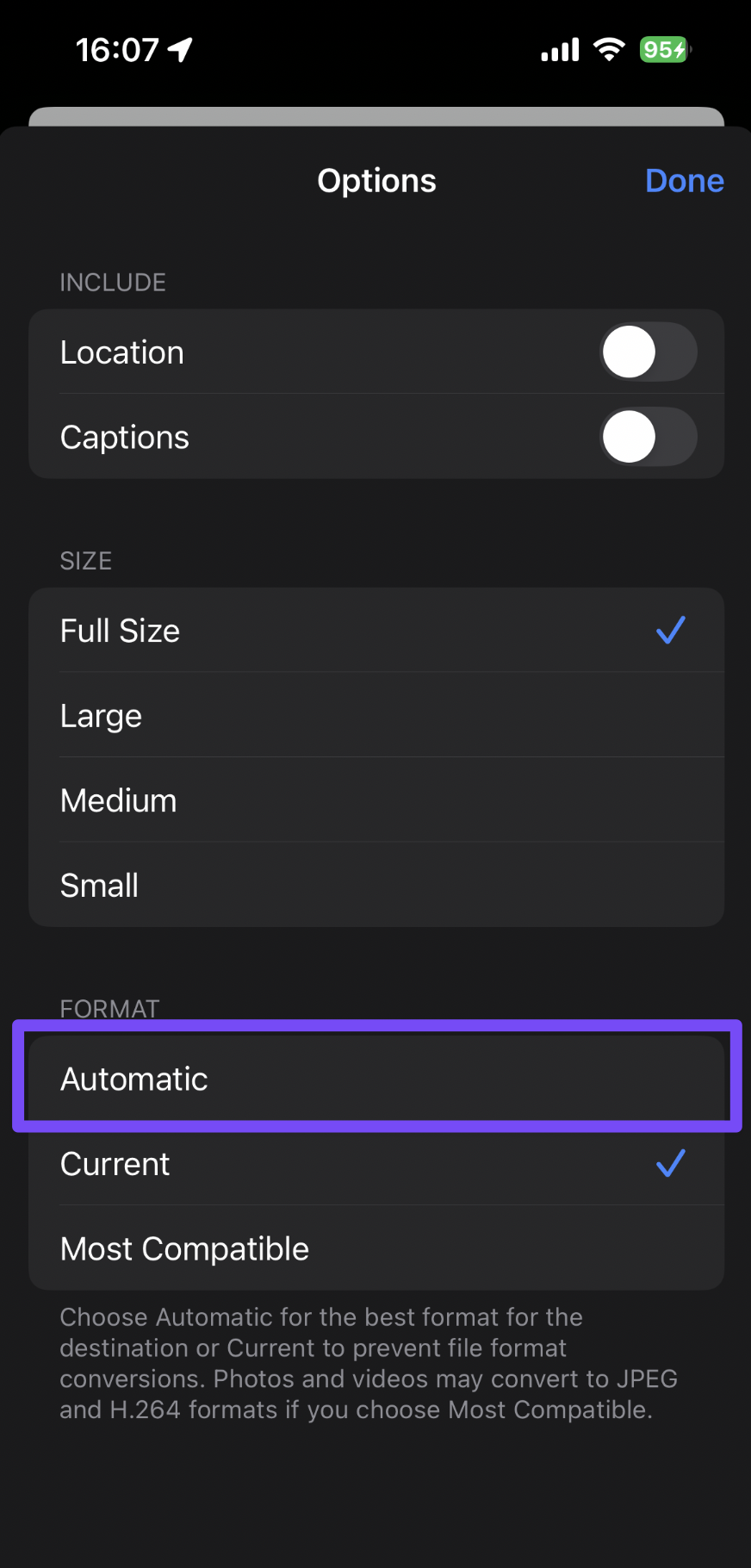
- Tap it and change the format to Automatic.
- Select your photos and upload.
- This forces iOS to convert images to a compatible format (JPG) during upload.
Notes
If you don’t change this setting, iOS may keep the original HEIC format.
You only need to do this once per upload session.
iPhone → Mac (AirDrop workflow)
If you prefer uploading from desktop:
Send photos from iPhone
- Open the Photos app on your iPhone.
- Select the images.
- Tap Share → AirDrop.
- Send to your Mac.
- iOS will typically convert images to JPG during AirDrop if needed, but if not, find the same setting as the above instructions to send them to your Mac using the Most Compatible setting.